
Managed Scans (Beta)
Let Socket run full application reachability on your GitHub repositories once a day, on Socket-managed infrastructure, with no CI setup.
Managed scans are in beta. Limits apply and behavior may change.
Full application reachability normally runs in your own CI with the Socket CLI. With managed scans, Socket scans the GitHub repositories you choose once a day in an isolated sandbox on its own infrastructure.
Results appear as ordinary repository scans, with the same reachability results, alerts and triage as scans run from CI.
Requirements
- An Enterprise plan.
- Managed scans turned on for your organization by Socket. Reach out to your Socket contact to get it enabled.
- An organization owner or admin to opt in.
- GitHub repositories that the Socket GitHub App is installed on. Socket clones through the app, so other repositories can't be added. Archived repositories can't be added either.
Current limitations
Before adding a repository, check ecosystem support for full application reachability and these limitations:
- No access to private registries. The sandbox has no credentials for private package registries or private Git hosts, and it can't reach private networks. Dependencies from private registries fail to install. You can turn on Continue on install errors to get partial results, or keep running full application reachability in your own CI for these repositories.
- Outbound HTTPS only. The sandbox can reach public hosts on port 443 and nothing else. Dependencies fetched over SSH or plain HTTP, such as
git+ssh://URLs, fail to install. - No Git submodules. The snapshot GitHub provides doesn't include submodule contents, so code in submodules isn't scanned.
- Manifest generation is off by default. Gradle projects without a
gradle.lockfileorlibs.versions.toml, and sbt projects, need a generated dependency manifest. Commit that manifest, or setdefaults.scan.create.autoManifesttotruein a committedsocket.jsonto generate it during the scan. - Fixed toolchain versions. The sandbox has one version of each build toolchain, for example Java 17 and the .NET 8 SDK. A project that needs a different version may fail to build or install.
Set up managed scans
1. Opt in
Go to Settings > Managed Scans in the Socket dashboard and check Enable managed scans.
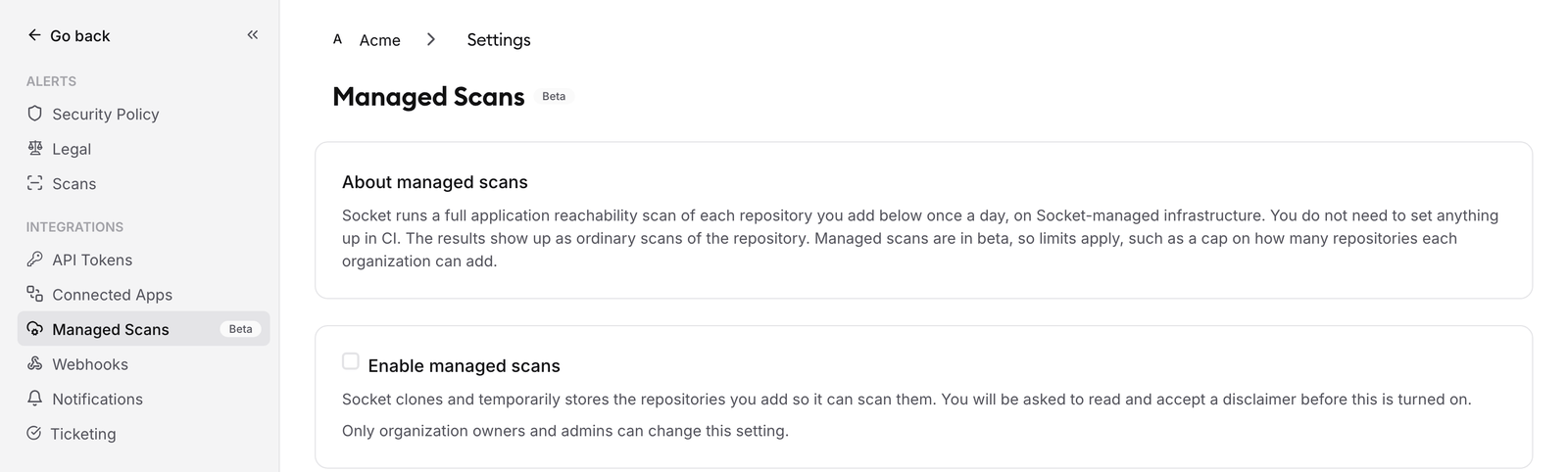
Read and accept the disclaimer to allow Socket to clone and temporarily store your repositories while it scans them.
2. Add repositories
Click Add repositories, pick the repositories you want scanned and click the Add button. Socket scans each repository's default branch unless you enter a different branch here.
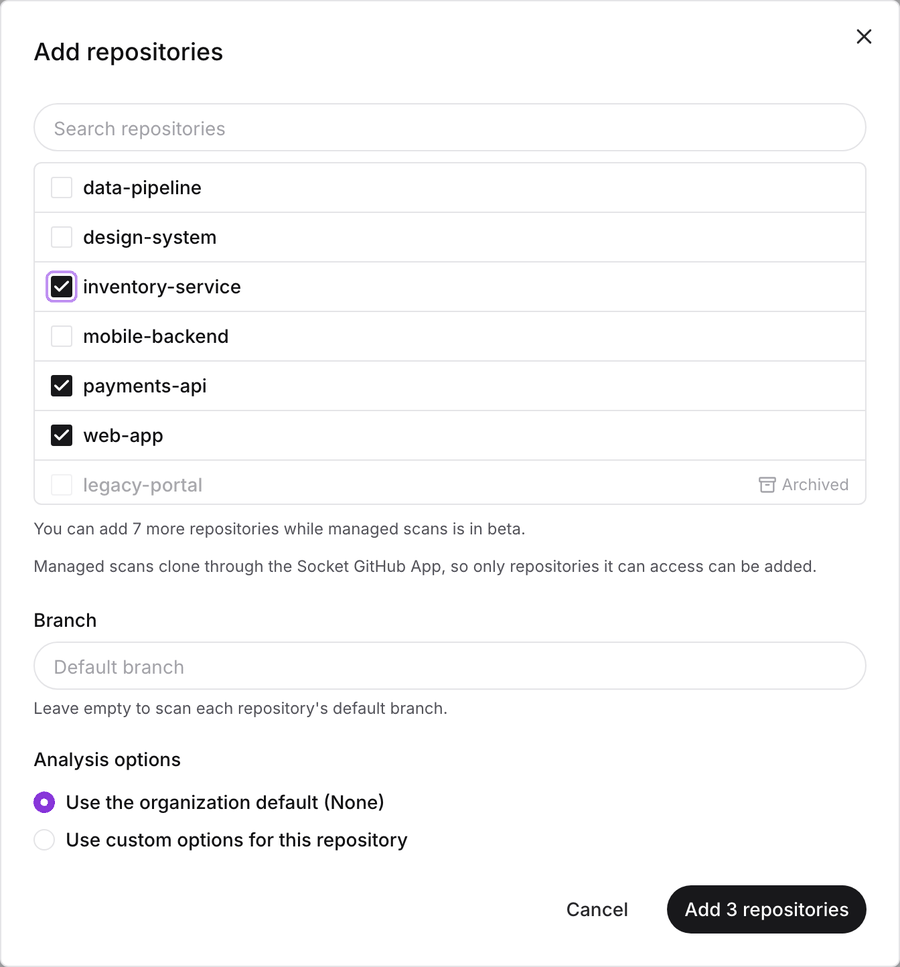
The first scan starts within a few minutes. You can't start scans manually from the dashboard.
3. Follow the scans
The Repositories table shows each repository's last and next scan. The Scans table below it lists each scan's status and duration.
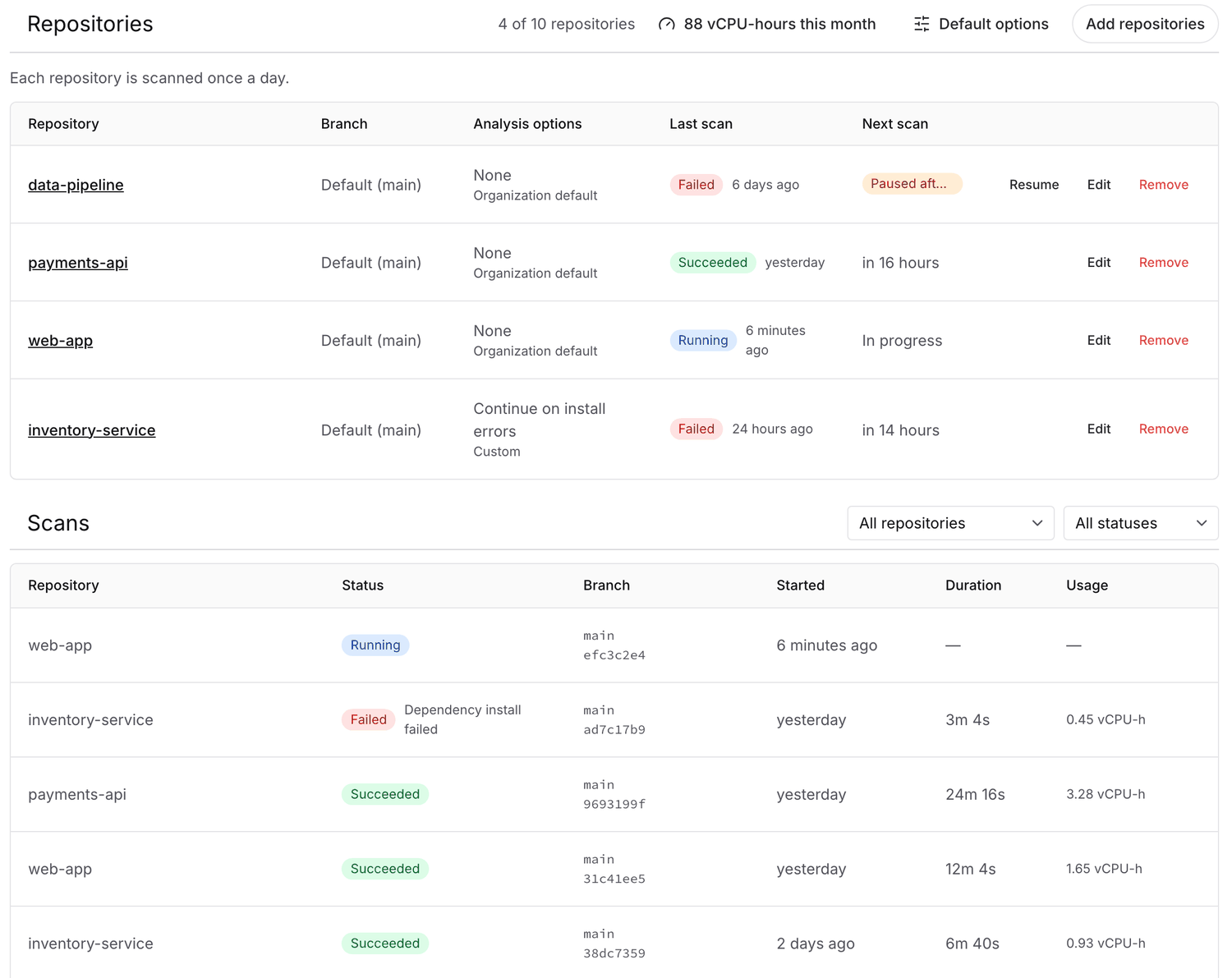
When a scan finishes, its results appear on the repository like any other scan. Click a row in the Scans table to open its details, including a View scan results link once the scan has succeeded.
The Usage column shows compute usage for each scan. The vCPU-hours this month button shows total usage and the number of scans finished this calendar month (UTC). Usage is added when a scan finishes.
Analysis options
You can change how managed scans handle projects that fail to install or analyze.
- Default options apply to every repository that doesn't set its own. Click Default options above the Repositories table to change them.
- Repository options override the defaults for one repository. Click Edit on the repository's row and choose Use custom options for this repository.
| Option | What it does |
|---|---|
| Continue on analysis errors | Finishes the scan with the results it has when the analysis of a project fails. |
| Continue on install errors | Carries on with the analysis when installing a project's dependencies fails. |
| Continue without source files | Skips a project that has no source files to analyze. |
| Continue without lock files | Skips a project that has no lock file. |
The Edit dialog also lets you change the branch, disable daily scans, and set exclude paths. Enter one glob per line, relative to the repository root. Socket skips manifests and reachability analysis under these paths. Use them for test fixtures, vendored code or example projects that fail to install. A plain name like fixtures only matches at the root. Use **/fixtures/** to match it anywhere.
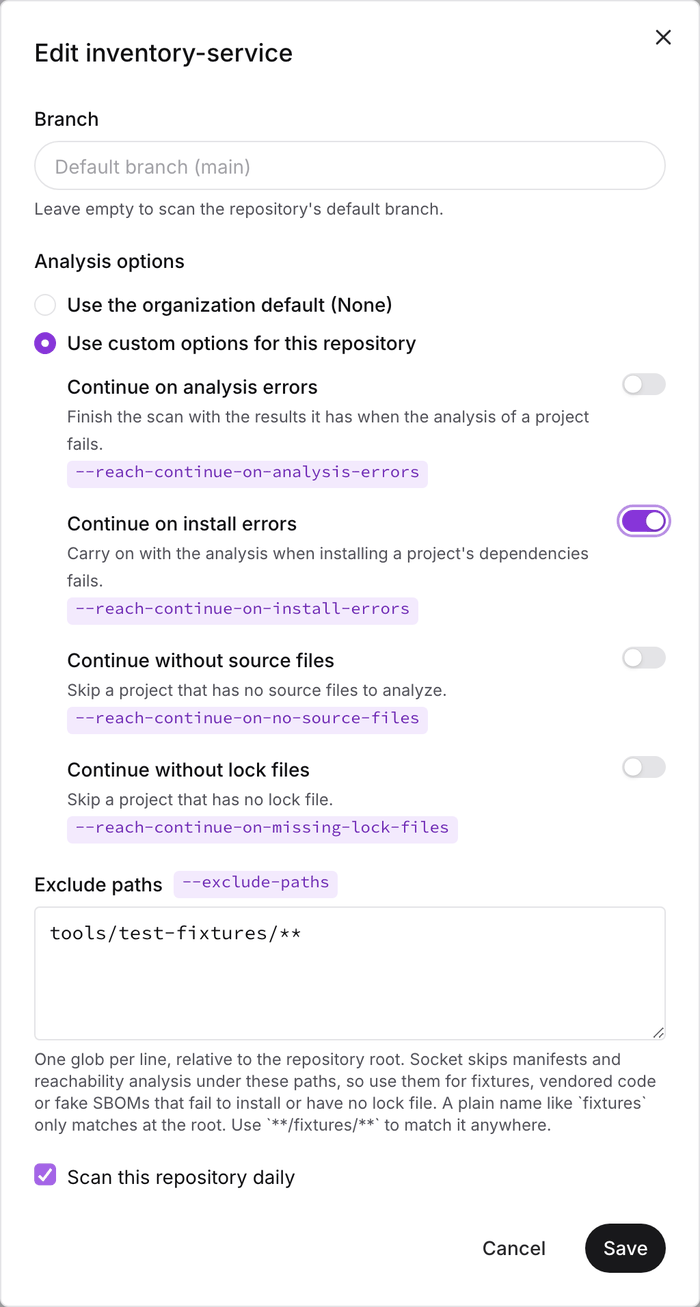
Changes apply from the next scan.
Limits
- 10 repositories per organization. Reach out to your Socket contact if you need more.
- Sandbox size. Each scan gets 8 vCPUs, 32 GiB of memory (about 24 GiB of it for the analysis) and 60 GiB of disk.
- 90 minutes per scan. A scan that runs longer is stopped and marked as timed out.
- 1 GiB repository snapshot. Socket downloads the repository from GitHub as a compressed archive, and archives larger than 1 GiB are rejected.
Security and data handling
- Socket clones the repository through the GitHub App at the commit the scan runs on. The snapshot is temporary and is deleted when the scan finishes.
- The scan runs in an isolated sandbox with no access to Socket's internal systems. Its only credential is a short-lived token that can create scans for that one repository. Your GitHub App token never enters the sandbox.
- npm install scripts are turned off. Builds in other ecosystems, such as Gradle or Maven builds, can still run code from the repository and its dependencies inside the sandbox, which only has outbound network access.
- The scan uploads what a CLI scan would: manifest files and the reachability results. Socket doesn't keep a copy of your source code. For a failed scan, the last lines of the scan output are kept with the scan so you can see what went wrong.
When a scan fails
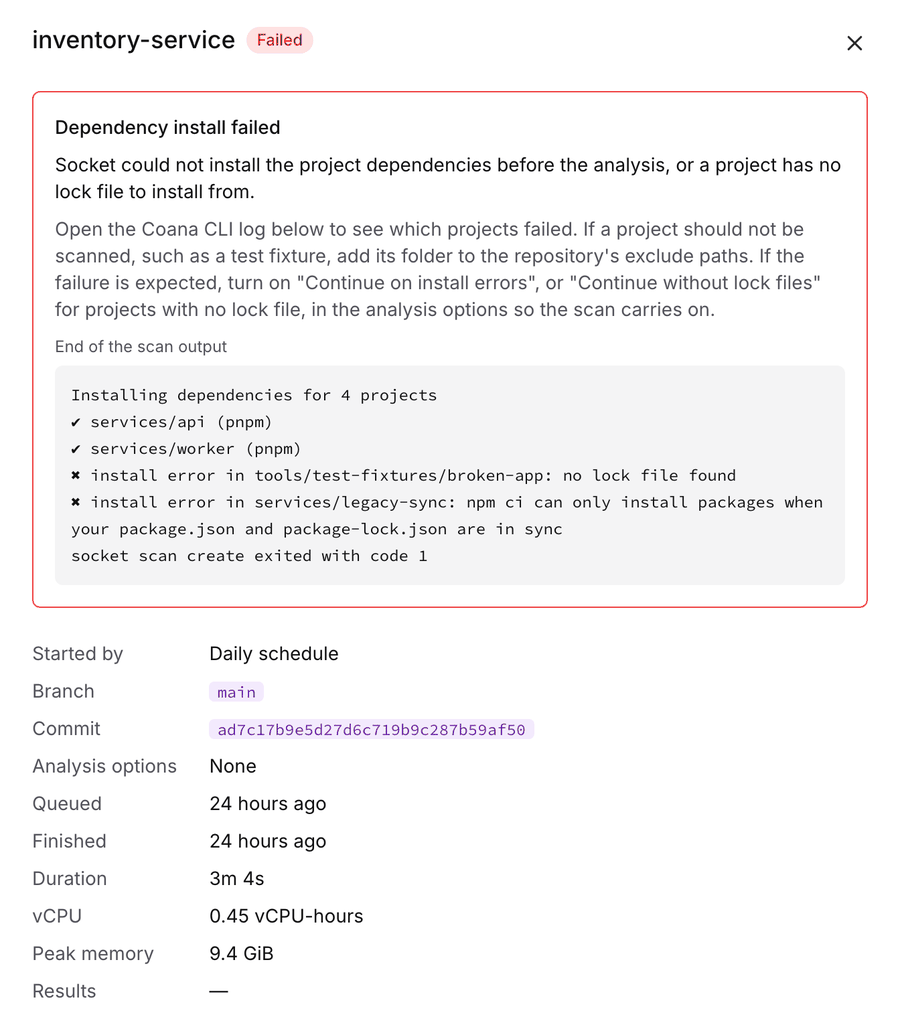
Click a failed scan to open its details. The top of the panel says what went wrong and what you can do about it, followed by the last lines of the scan output. For scans that got as far as the analysis, the Coana CLI log further down shows the full analysis log, which you can download.
| Reason | What to do |
|---|---|
| Dependency install failed | Check the analysis log. Exclude folders that shouldn't be scanned, or turn on Continue on install errors or Continue without lock files when appropriate. For private dependencies, see Current limitations. |
| Analysis failed | Check the analysis log. Continue on analysis errors lets the scan finish with the results it has. |
| Out of memory | Exclude unnecessary generated or vendored directories. Contact Socket support if the scan still exceeds its memory limit. |
| Timed out | Exclude directories you don't need scanned. Contact Socket support if the scan still exceeds the 90-minute limit. |
| CLI error | Check the scan output and analysis log for the error. |
| Socket error | Socket retries automatically. Contact Socket support if it keeps failing. |
| Out of disk space, Repository rejected, or Result rejected | Contact Socket support. See Limits for disk and repository size limits. |
Paused repositories
After five failed scans in a row, Socket pauses the repository and shows Paused after 5 failures in its Next scan column. Fix the cause, then click Resume to scan it again shortly. A repository marked Paused by Socket was paused by the Socket team. Contact Socket support about it.
Turning managed scans off
- To stop future scans for one repository, click Edit and uncheck Scan this repository daily, or click Remove. Past scans stay in the Scans table either way.
- To stop future scans for all repositories, uncheck Enable managed scans. Your repository list is kept, and scanning resumes if you turn it back on.
Scans that are already running continue until they finish. Wait for an active scan to finish before removing its repository.
Updated about 15 hours ago