Notifications
Route organization alerts and supply chain attack campaigns to email, Slack, and Microsoft Teams.
Notifications are available on Team, Business, and Enterprise plans.
Use Settings → Integrations → Notifications to send Socket events to the inboxes and chat channels your team already watches. You create channels (where messages go) and subscriptions (which events to send, with optional filters).
This is separate from Slack alerts (a single incoming webhook for pull request comments) and Webhooks (HTTP callbacks for your own systems). Notifications is the dashboard workflow for filtered, multi-destination delivery of organization-wide alert activity.
Key capabilities
- Email, Slack (coming soon), and Microsoft Teams — Send the same subscription to one or more destinations.
- Filtered subscriptions — Limit delivery by alert category, severity, priority, repository, or (for attack campaigns) ecosystem.
- Digest delivery for alerts — Organization alert notifications are grouped and sent as a digest so a burst of alerts does not flood the destination. Attack campaign notifications are sent immediately.
- Email verification — Email destinations stay inactive until the address is confirmed.
Prerequisites
- Confirm your Socket account is on a Team, Business, or Enterprise plan.
- Hold an Owner or Admin role in your Socket organization (required to create and edit channels and subscriptions). Members can view notification settings but cannot change them.
- For Slack: permission to install apps in the Slack workspace you want to connect.
- For Microsoft Teams: permission to create a Workflows flow in the team and channel that should receive messages.
Open the Notifications page
In the Socket dashboard, go to Settings → Integrations → Notifications for your organization.
The URL follows this pattern: https://socket.dev/dashboard/org/{OrgName}/settings/integrations/notifications
The page has two sections:
- Channels — Destinations Socket can deliver to (an email address, a Slack workspace, or a Microsoft Teams webhook).
- Subscriptions — Rules that bind an event and filter to one or more channel connections.
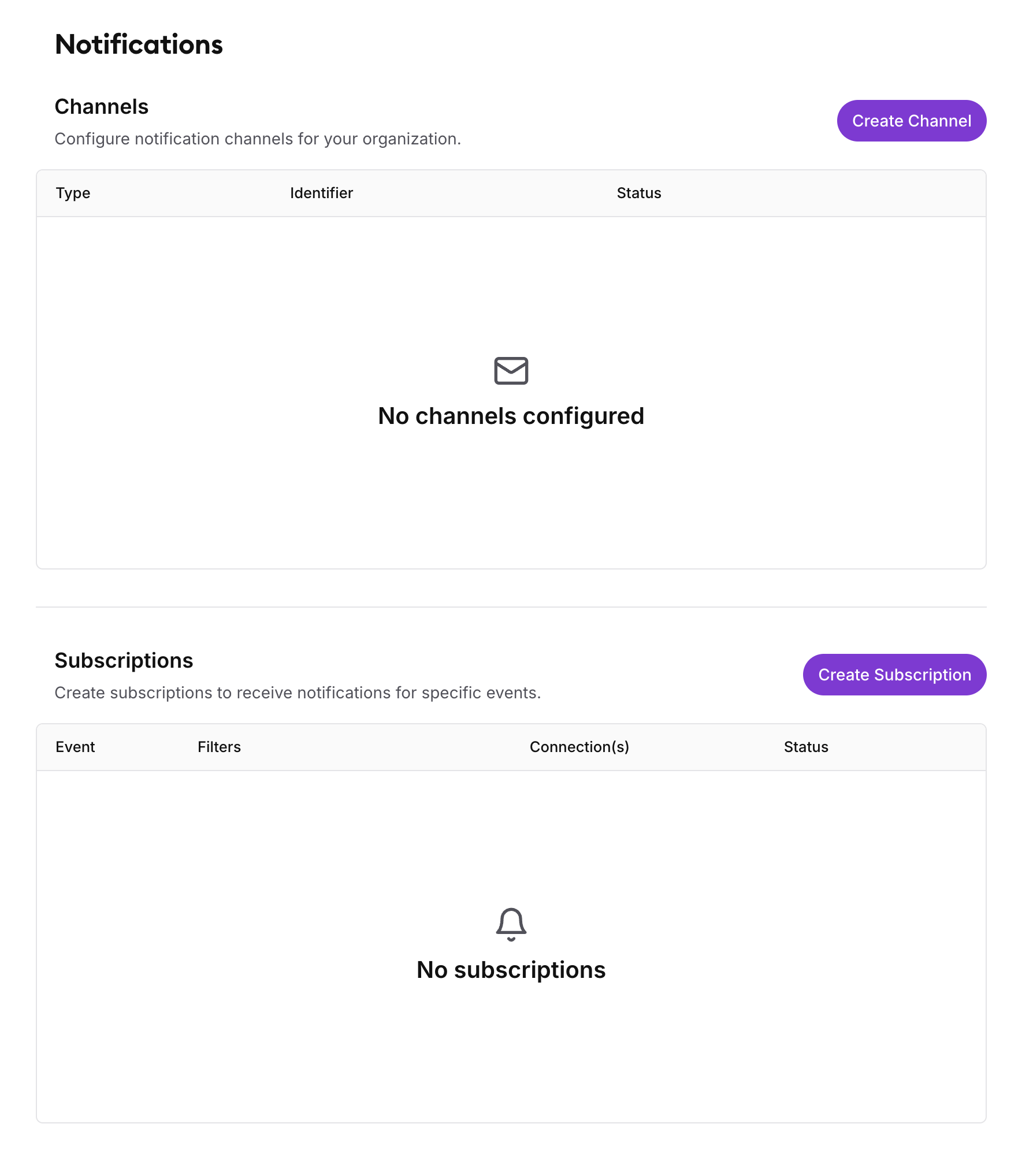
Notifications settings page showing the Channels table above and the Subscriptions table below
Channels
A channel is an integration Socket uses to deliver messages:
| Type | What you configure | Delivery target (connection) |
|---|---|---|
| An email address | That address, after it is verified | |
| Slack | A connected Slack workspace | Each Slack channel Socket can post to in that workspace |
| Microsoft Teams | A display name and a Workflows webhook URL | That Teams channel |
Email and Microsoft Teams each have a single connection. A Slack channel (the Socket workspace integration) can have many connections — one per Slack channel.
Slack is not yet available.
Channel status
| Status | Meaning |
|---|---|
| Verification pending | An email channel is waiting for the recipient to confirm the address. It cannot be used in a subscription until it is Active. |
| Active | The channel is ready to receive notifications. |
| Inactive | The channel is disabled (for example, a Slack workspace that is no longer connected). |
| Failing | The last several deliveries failed. Hover the badge to see the last error. Socket keeps retrying; fix the destination (inbox, Slack membership, or Teams webhook) or replace the channel. |
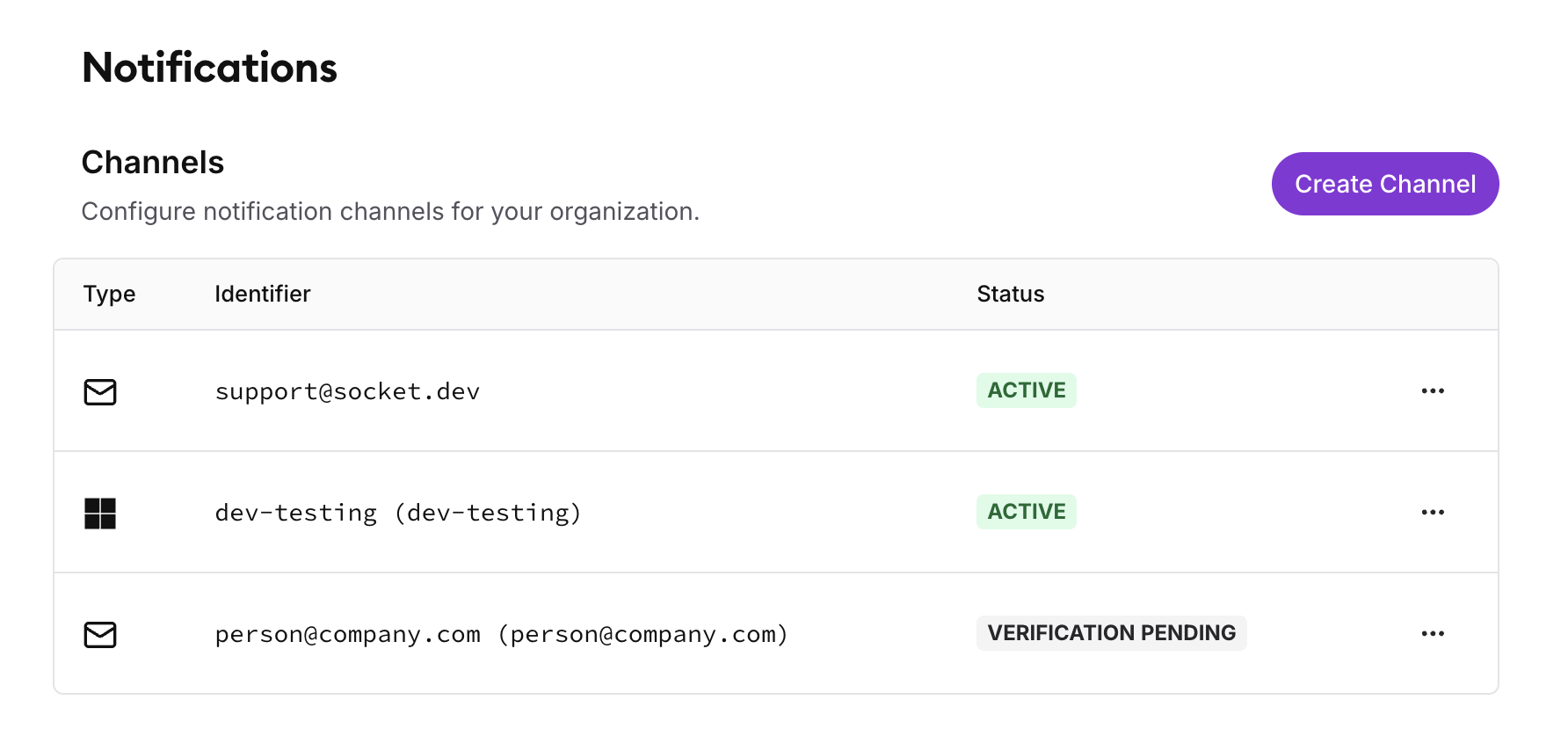
Channels table with Type, Identifier, and Status columns, including an Active email channel and a Verification pending email channel
Create an email channel
- On the Notifications page, click Create Channel.
- Select Email, then click Next.
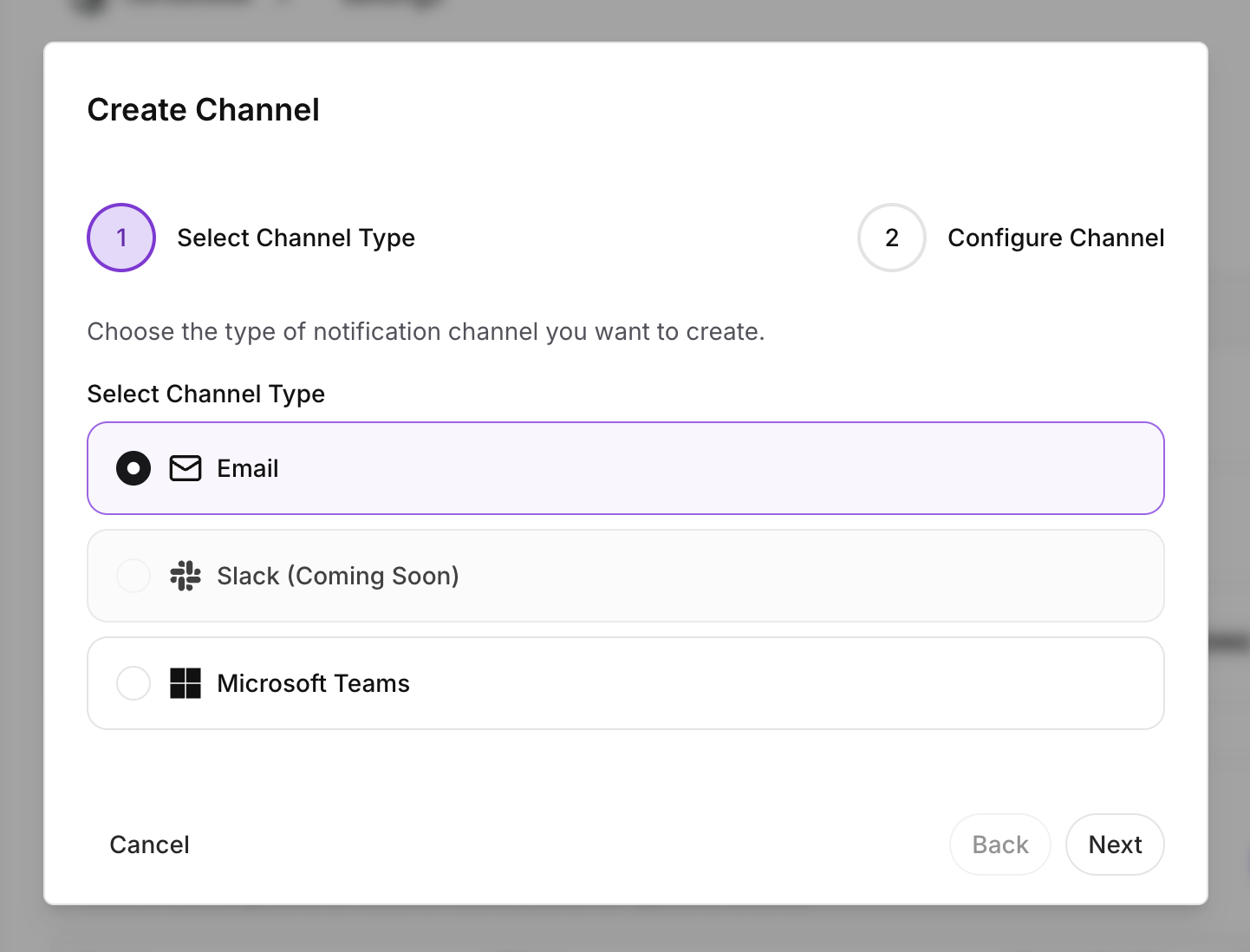
Create Channel dialog on the Select Channel Type step, with Email selected
- Enter the Email Address that should receive notifications, then click Create.
Socket sends a verification email with the subject Confirm your email for Socket notifications. The channel appears with status Verification pending.
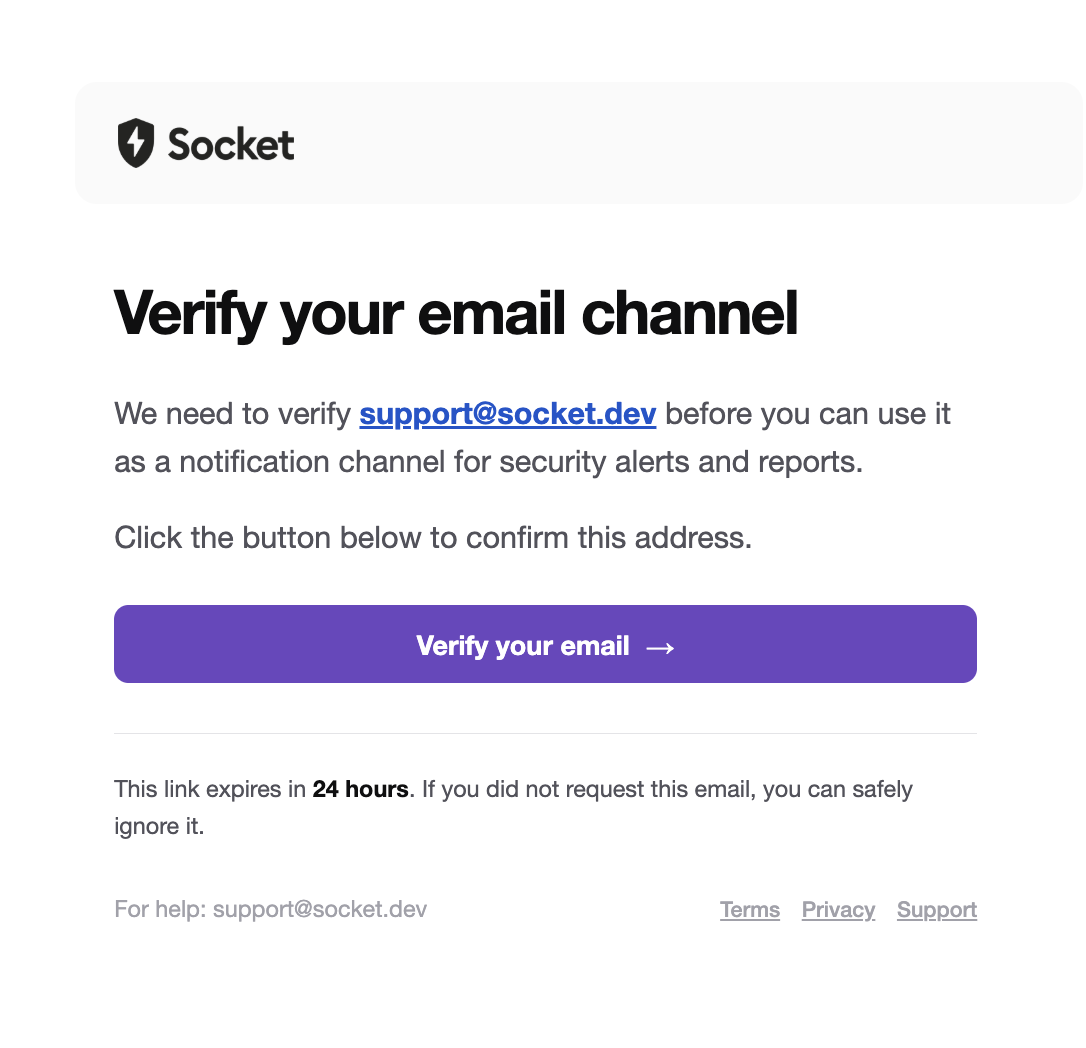
- Open the verification email and click the confirmation link.
- You must be signed in to Socket as an Owner or Admin of the organization for verification to succeed. The link expires after 24 hours.
When verification succeeds, the Notifications page shows a success banner and the channel status becomes Active. You can now select it when creating a subscription.
If the link is invalid or expired, delete the pending channel and create it again. Socket sends a new verification email.
Create a Microsoft Teams channel
Microsoft Teams uses a Workflows incoming webhook (the current Microsoft-supported replacement for Office Connector incoming webhooks).
- In Microsoft Teams, create a Workflows flow with the Post to a channel when a webhook request is received template. Copy the HTTP POST URL. See Microsoft’s instructions.
- On the Notifications page, click Create Channel.
- Select Microsoft Teams, then click Next.
- Enter a Channel Name (a label in Socket, for example
Security Alerts) and paste the Webhook URL. - Click Create.
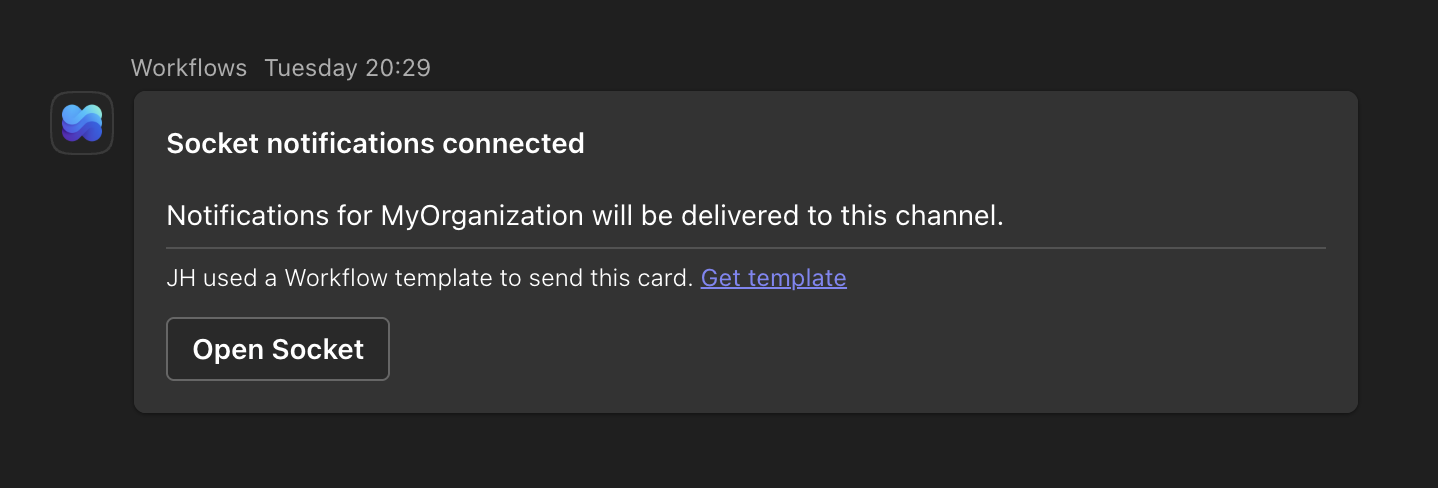
Socket sends a test Adaptive Card to the Teams channel. If that delivery succeeds, the channel is Active and ready for subscriptions.
Delete a channel
- In the Channels table, open the ··· menu on the row and select Delete.
- Confirm the channel type and identifier, then click Delete.
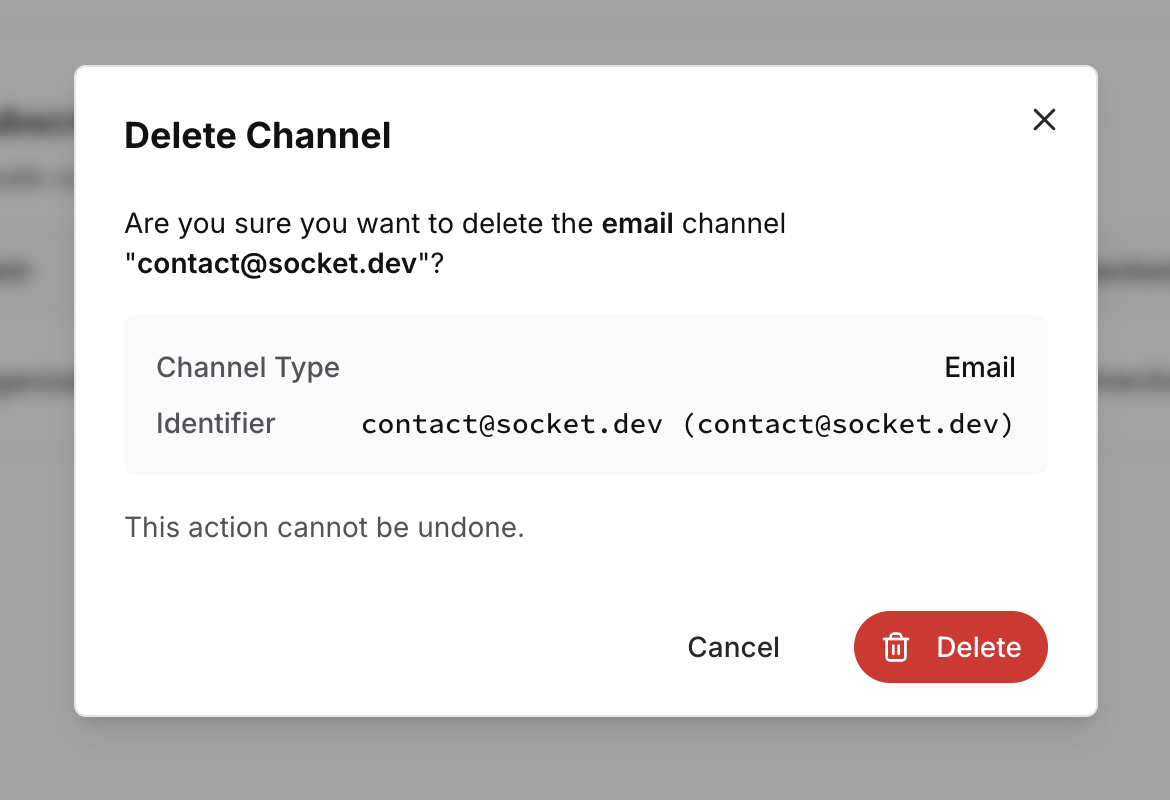
Delete Channel confirmation dialog
Deleting a channel cannot be undone. Socket removes its connections from every subscription. A subscription that has no remaining connections is deleted as well.
Subscriptions
A subscription is: an event + a filter + one or more connections.
Create separate subscriptions when different teams should get different events or filters (for example, critical vulnerabilities to #security, license alerts to a legal mailing list).
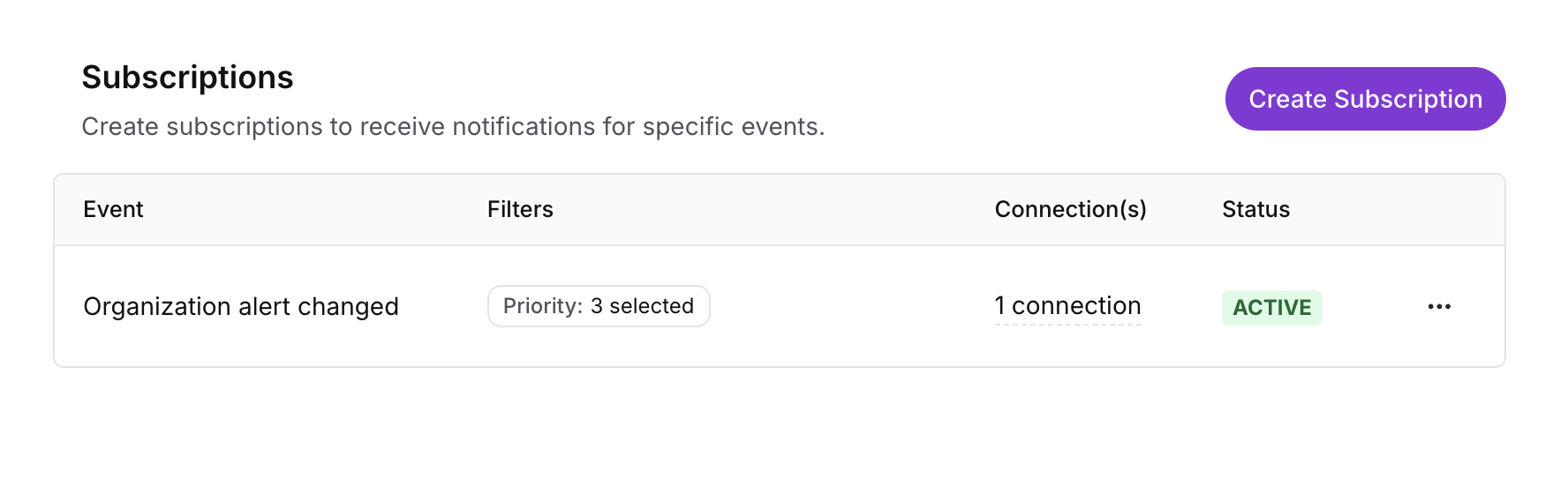
Subscriptions table with Event, Filters, Connection(s), and Status columns
Subscription status
| Status | Meaning |
|---|---|
| Active | Every connected destination is active. |
| Warning | Some connections are active and some are not (for example, one email still pending verification). |
| Inactive | None of the connections can currently receive messages. |
| No connections | The subscription has no destinations. Recreate it or add connections by editing it. |
Create a subscription
Click Create Subscription to start the wizard.
1. Select event
Choose the event that should trigger the subscription.
| Event | When it fires |
|---|---|
| Organization alert created | A new organization-wide alert appears. |
| Organization alert changed | An existing organization alert is updated. |
| Organization alert cleared | An organization alert is no longer present. |
| Attack campaign detected | Socket publishes a supply chain attack campaign that impacts your organization. This option appears when campaign notifications are available for your organization. |
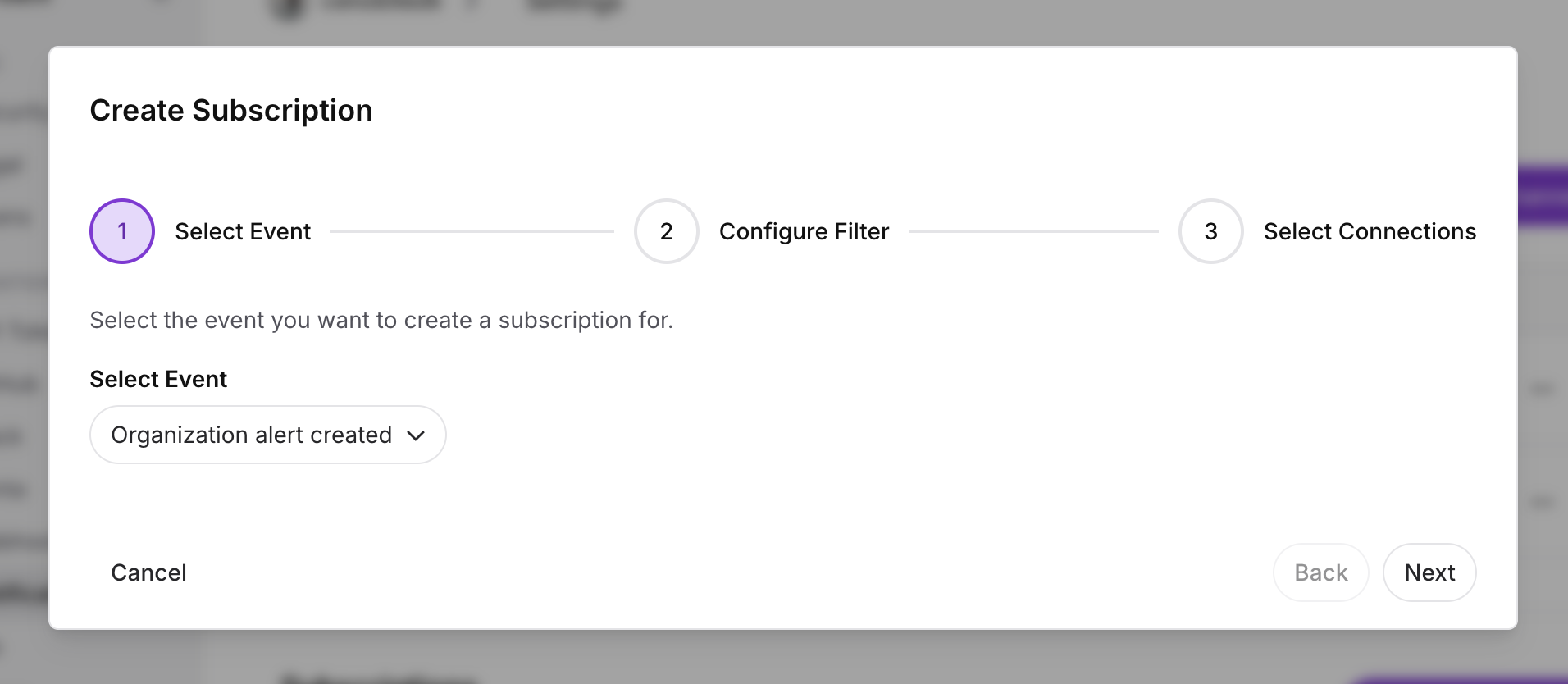
Create Subscription dialog on the Select Event step
2. Configure filter
Filters limit which events are delivered. Values in the same field match if any selected value matches. Values across different fields must all match. Leave a field unset to mean “any”.
Organization alert events
You must select at least one of the following:
- Category — Supply chain risk, Vulnerability, Quality, Maintenance, License, Other. See Alert Categories.
- Severity — Critical, High, Medium, Low.
- Priority — Critical, High, Medium, Low (Socket’s alert priority score).
- Repositories — Only alerts that appear in the selected repositories.
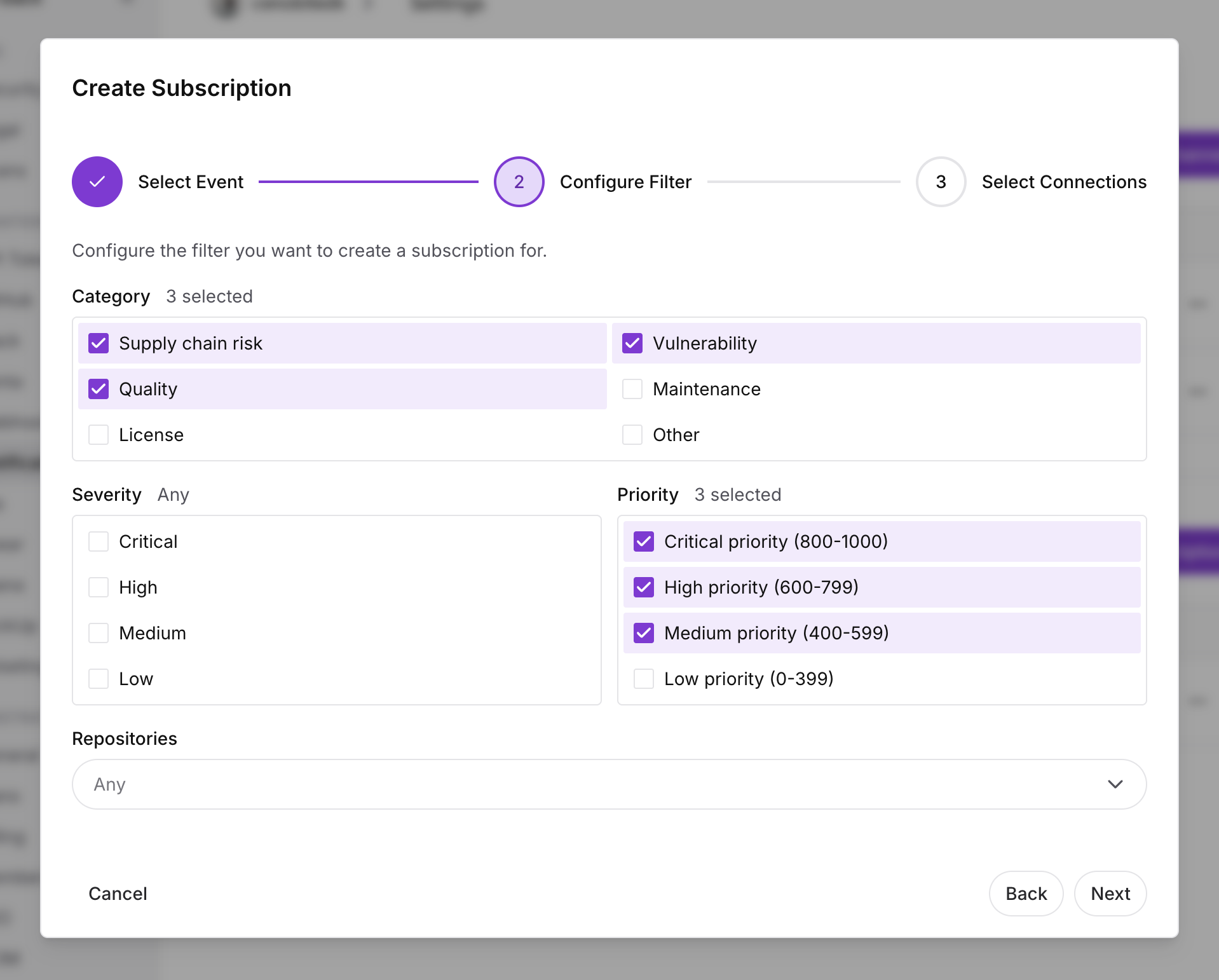
Create Subscription dialog on the Configure Filter step for an organization alert event
Attack campaign detected
Filters are optional. With no filter, every matching campaign is delivered.
- Ecosystems — Only campaigns that involve the selected package ecosystems.
- Repositories — Only when one of the selected repositories is impacted.
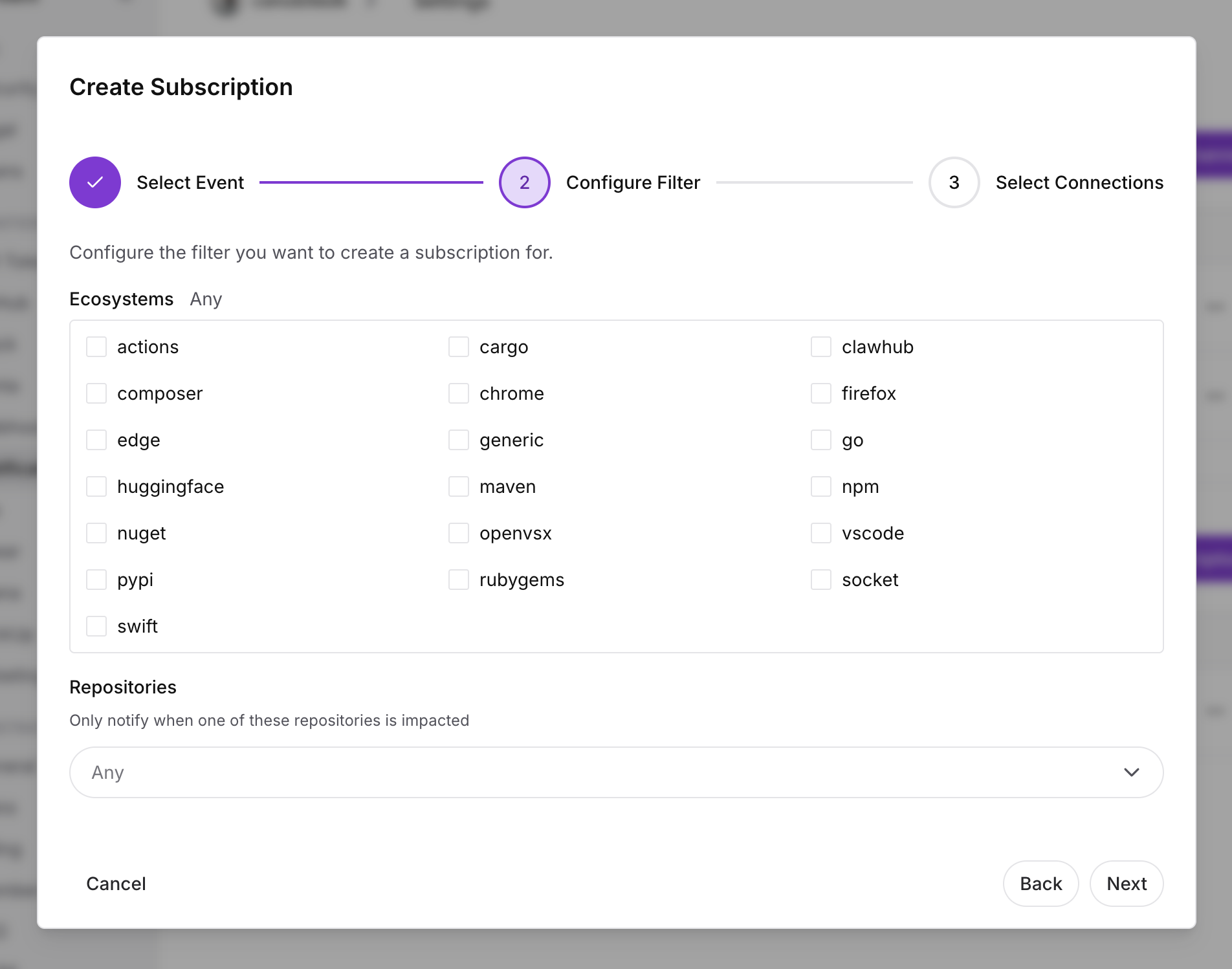
Create Subscription dialog on the Configure Filter step for Attack campaign detected
3. Select connections
Choose where to send matching events. Only Active channels appear.
- Select a Channel (the email address, Slack workspace, or Teams destination).
- Select a Connection (for Slack, the specific Slack channel; for email and Teams this is usually filled in automatically).
- Click + to add it. Repeat to send the same subscription to multiple destinations.
- Click Create.
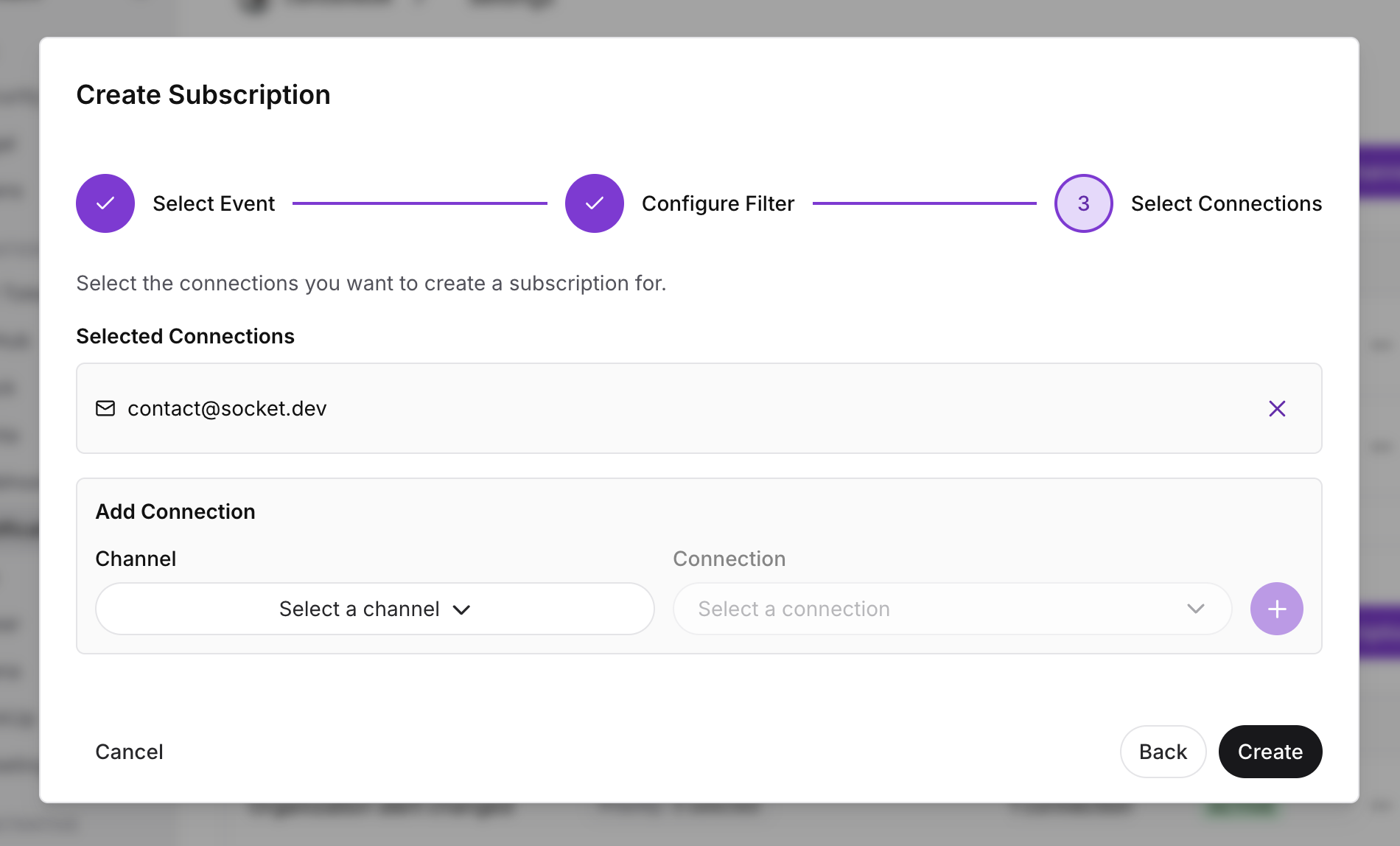
If you see No connections found, create and verify a channel first. Pending email channels do not appear until they are Active.
Edit or delete a subscription
- Edit — Click the subscription row, or open the ⋮ menu and select Edit. You can change the event, filter, and connections.
- Delete — Open the ··· menu, select Delete, and confirm.
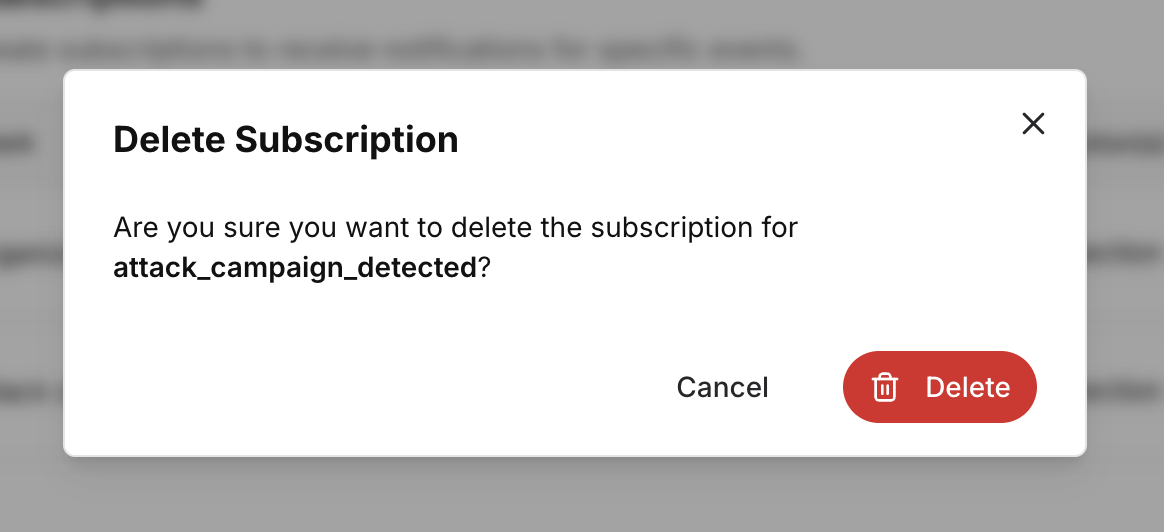
How delivery works
- Organization alert created / changed / cleared — Socket groups matching alerts and sends a digest after a short wait (about 20 minutes from the first matching alert in the window). This applies to email, Slack, and Microsoft Teams so a scan that opens many alerts does not post dozens of separate messages.
- Attack campaign detected — Sent as soon as the campaign is published for your organization.
- Email — HTML message with a link to the relevant alerts in the dashboard, plus an unsubscribe link. Unsubscribing removes that email connection from the subscription; it does not delete the channel.
- Slack — A formatted message in each subscribed Slack channel.
- Microsoft Teams — An Adaptive Card in the channel that owns the Workflows webhook.
Unsubscribe from email notifications
Every notification email includes an unsubscribe link. Opening it and confirming stops that address from receiving that subscription. Admins can add the connection back by editing the subscription.
Unsubscribing from one subscription does not remove the email channel or other subscriptions that use the same address.
Permissions
| Role | Capabilities |
|---|---|
| Owner | Create, edit, and delete channels and subscriptions; verify email channels |
| Admin | Create, edit, and delete channels and subscriptions; verify email channels |
| Member | View channels and subscriptions |
| Contributor | Cannot access notification settings |
Troubleshooting
I don’t see Notifications in Settings
Confirm the organization is on a Team, Business, or Enterprise plan, and that your role is Owner, Admin, or Member. Contributors cannot open this page.
Slack or Microsoft Teams is marked Coming Soon
That destination is not enabled for your organization yet. You can still use email. Contact support if you expected it to be available.
Email channel stays on Verification pending
- Check the inbox (and spam) for Confirm your email for Socket notifications.
- Open the link while signed in as an Owner or Admin of the organization.
- If the link is older than 24 hours, delete the channel and create it again.
- The address you enter must be one an Owner or Admin can use to complete verification in the dashboard.
The verification link shows an error
The link is invalid or expired, or the signed-in user cannot manage notification settings. Sign in as an Owner or Admin and try again, or recreate the email channel.
No connections found when creating a subscription
Create at least one Active channel first. Email channels must be verified. For Slack, connect a workspace and confirm Socket can see the Slack channels you want (invite the app to private channels).
Slack messages are not arriving
- Confirm the subscription status is Active and the Slack connection is listed.
- For private channels, invite the Socket Slack app to the channel.
- Check Settings → Integrations → Slack that the workspace is still connected.
- If the channel row shows Failing, hover the badge for the last error. Reconnect the workspace or recreate the Slack notification channel if the app was uninstalled.
Microsoft Teams messages are not arriving
- Confirm you used a Workflows webhook URL, not a retired Office Connector incoming webhook.
- Open the Workflows flow in Teams and confirm it is still enabled.
- Recreate the Teams channel in Socket if you regenerated the webhook URL. Socket sends a test card on create — if that card never appeared, the URL is not valid.
We received a digest instead of one message per alert
Organization alert notifications are batched. Socket waits up to about 20 minutes and sends a single digest for matching alerts. Attack campaign notifications are not batched.
I cannot create or edit notifications
Only Owners and Admins can change notification settings. Members have a read-only view.
Need more help?
If you encounter problems not covered here, contact support.
Next steps
- Organization Alerts — Review and manage alerts across all repositories.
- Alert Categories — How Socket classifies package issues used in notification filters.
- Webhooks — Receive the same kinds of events as HTTP callbacks for your own automation.
- Slack alerts — Post pull request scan notifications to a single Slack incoming webhook.
- Linear Integration / Jira Integration — Create tickets from alerts instead of (or in addition to) chat and email.
Updated 2 months ago